RSVPing to Meetings
Respond to meeting invitations directly from Cadeo.
Viewing Invitations
When you're invited to a meeting:
- Click the event on your timeline
- See your current RSVP status
- View other attendees' responses
You can also respond to pending invites directly from your Inbox.
RSVP Options
| Response | Meaning |
|---|---|
| Accept | You'll attend |
| Decline | You won't attend |
| Maybe | Tentative |
How to RSVP
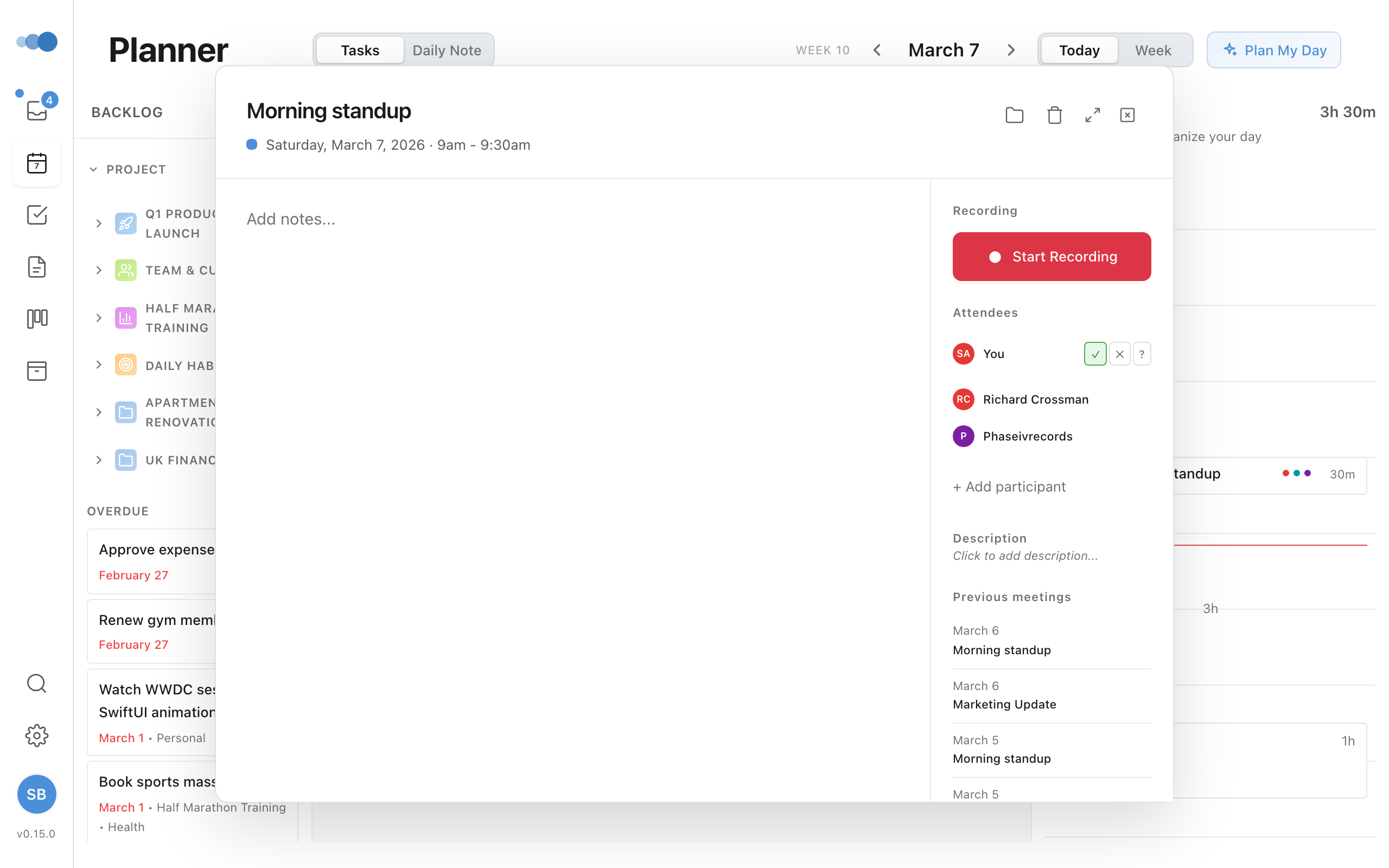
- Click the calendar event
- Find the RSVP buttons
- Click your response
- Your response is saved automatically
AI RSVP Suggestions
When viewing pending invites in your Inbox, Cadeo's AI analyzes each invite and suggests whether to accept or decline based on:
- Schedule conflicts with other events
- Number of meetings already on that day
- Organizer and attendee context
The suggestion appears as a badge with reasoning. See Calendar Invites in Inbox for details.
Attendee Status Icons
See who's attending:
- Checkmark = Accepted
- X = Declined
- ? = Maybe
- No icon = No response
Changing Your Response
You can change your RSVP anytime:
- Click the event
- Click a different response
- The new response is saved
tip
RSVP changes sync immediately to Google Calendar.