Creating Notes
Create and organize rich-text notes in Cadeo.
Creating a New Note
- Go to Notes in the sidebar
- Click + New Note
- Enter a title
- Start writing
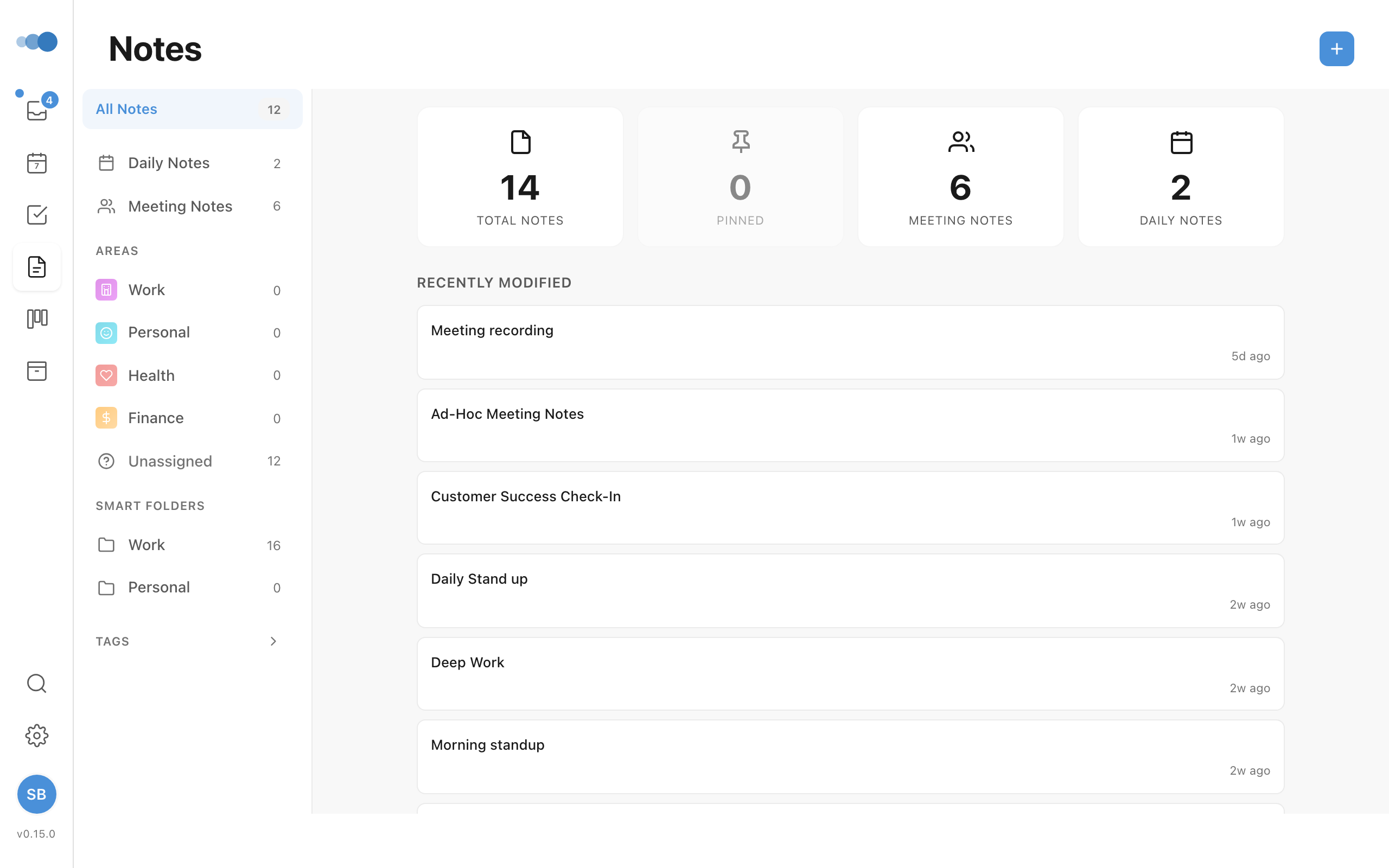
Notes auto-save as you type.
Assigning to Project or Area
Keep notes organized:
- Open the note
- Click the Project or Area dropdown
- Select where it belongs
Note Types
| Type | Description |
|---|---|
| Regular Note | Standard notes |
| Daily Note | One per day, journal-style |
| Meeting Note | Attached to calendar events |
Finding Notes
- Notes view: See all notes in a dashboard
- Project view: See notes for a specific project
- Search (Cmd+K): Find notes by title or content
- Search notes (/ or Cmd+F in the Notes view): The box above the list narrows it as you type — every word you type must appear in the note's title or text, in any order.
↓thenReturnopens the first result;Escclears the search. - Sort: The button beside the search box orders the list by last edited, date created or title. Cadeo remembers your choice.
- Find in a note (Cmd+F): With a note open,
Cmd+Ffinds text in that note. The note's footer shows its word count.
Linking Notes
Type [[ in a note or the daily note to link to another note: pick one from the list (arrow keys and Return, or click), or choose New note to make one with the name you typed. The link shows that note's current name — renaming it never breaks the link — and a click opens it.
At the bottom of a note, Linked from lists the notes that link to it, with the sentence each link sits in.
On iPhone, tap a link to open its note. (Links are made on the Mac or the web for now.)
Pinning Notes
Pin important notes to keep them at the top:
- Open the note menu
- Click Pin
Pinned notes appear first in the Notes view.
Auto-Save
Notes save automatically after you stop typing (1-second delay). Look for the save indicator to confirm.