Command Bar & Search
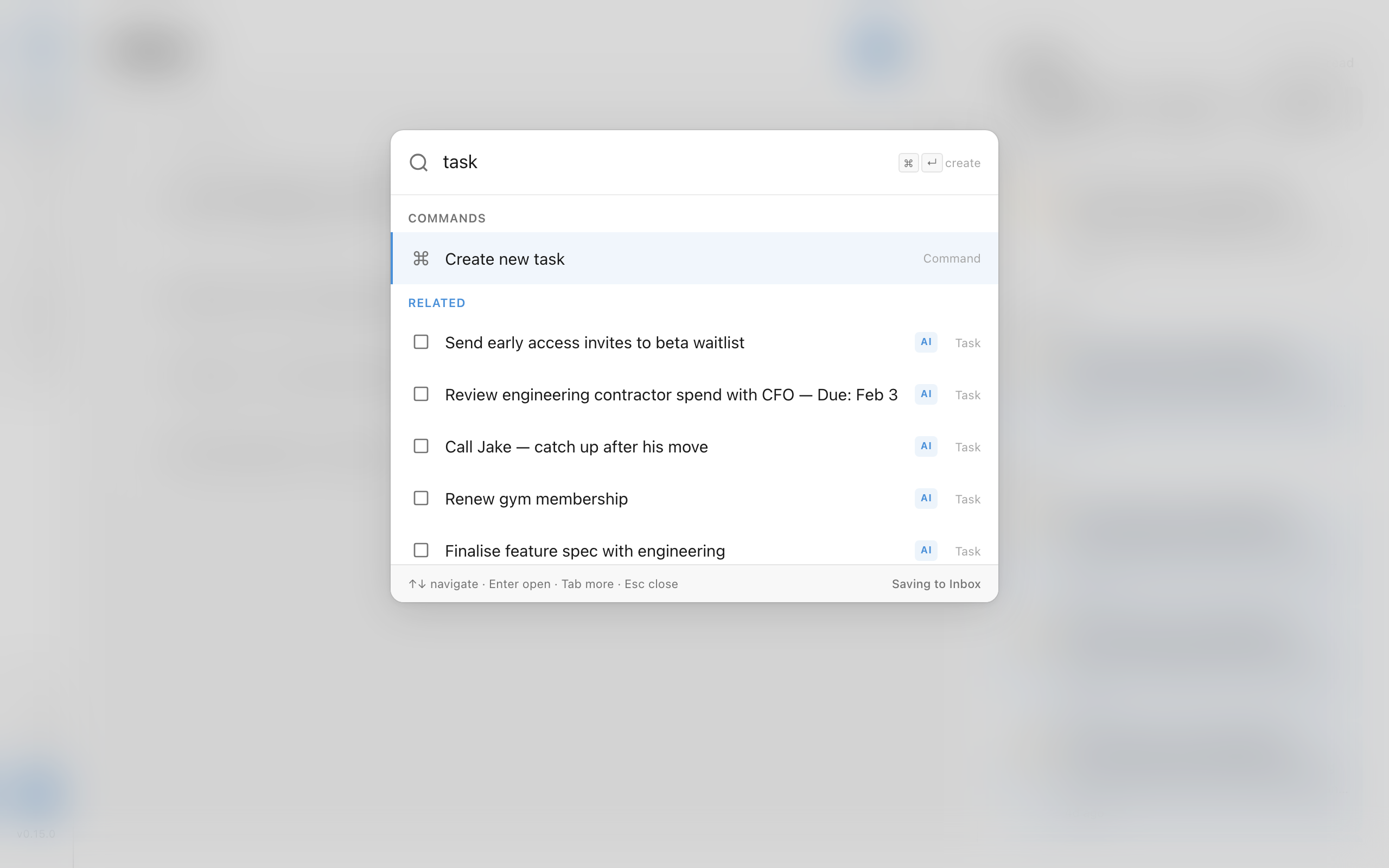
The Command Bar is the fastest way to find anything in Cadeo and navigate between views.
Opening the Command Bar
Press Cmd+K (Mac) or Ctrl+K (Windows/Linux) from anywhere in the app.
What You Can Search
| Type | What's searched |
|---|---|
| Tasks | Title and notes |
| Notes | Title and content |
| Projects | Project name |
| Areas | Area name |
| Commands | Built-in actions (see below) |
Results are grouped by type (up to 3 per group) and ranked by relevance using fuzzy matching.
Available Commands
- Go to Inbox / Planner / Projects / Notes / Archive
- Create new task / project / area / note
- Plan My Day — open the AI day planner
- Plan My Week — open the AI weekly planner
- Project Pulse — view project health dashboard
- Wrap up the day — trigger the End of Day Reflection sheet on demand (matches: wrap, end, day, close, ritual, reflect, review)
- Show morning brief — re-open the Morning Brief sheet on demand, even if you've already dismissed it for the day (matches: morning, brief, open, ritual, plan, today, review)
- Help Center — open help.cadeo.app
Quick Task Creation
A "Create task" row always appears at the bottom of results. Press Cmd+Enter (or Ctrl+Enter) to instantly create a task from your search query text.
Keyboard Navigation
| Key | Action |
|---|---|
Arrow Up/Down | Move between results |
Enter | Select highlighted item |
Cmd+Enter | Create task from query |
Escape | Close command bar |
Semantic Search
An AI-powered semantic search runs in parallel with fuzzy search. Results appear under a Related group with an AI badge, surfacing conceptually similar items even if they don't match your exact keywords.
Offline Search (Desktop)
On the desktop app with local AI models installed, semantic search works offline. Tasks and notes are embedded locally using Nomic Embed v2, so you can search by meaning without an internet connection. Local results appear instantly alongside cloud results when available.
When the On-Device Only privacy setting is enabled, only local search is used — no queries are sent to the cloud.