Dark Mode
Cadeo supports a full dark theme for comfortable viewing in low-light environments. You can choose to always use dark mode, always use light mode, or let Cadeo match your system preference.
Changing Your Theme
- Click the Settings icon in the sidebar (gear icon)
- Find the Appearance section
- Select your preferred theme from the dropdown:
- System (auto) - Matches your operating system's dark/light setting
- Light - Always use light theme
- Dark - Always use dark theme
Your preference is saved automatically and applies instantly.
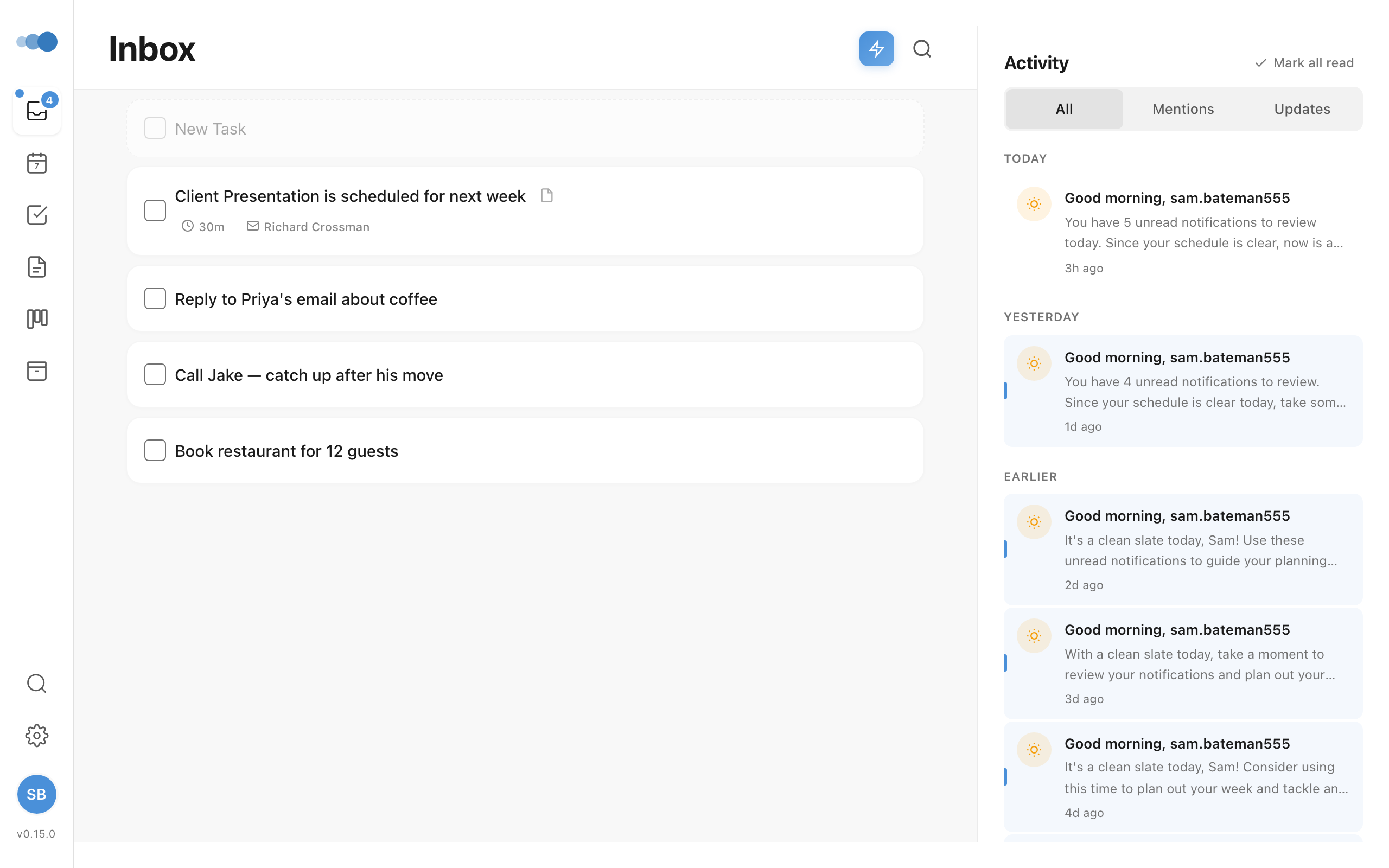
Theme Options
| Option | Description |
|---|---|
| System | Cadeo follows your device's appearance setting. If your Mac, Windows, iPhone, or Android is set to dark mode, Cadeo will be dark. |
| Light | Always displays the light theme, regardless of your system setting. |
| Dark | Always displays the dark theme, regardless of your system setting. |
What Changes in Dark Mode
Dark mode applies across the entire app:
- All views - Inbox, Planner, Tasks, Projects, Notes, Areas
- Sidebars and navigation - Left navigation, view sidebars
- Timeline and calendar - Event cards, time slots, scheduled tasks
- Modals and popups - Task details, event details, settings
- Cards and panels - Note cards, project cards, stat cards
- Inputs and buttons - Form fields, dropdowns, action buttons
Tips
- System is the default - If you've never changed this setting, Cadeo will automatically follow your system preference
- Changes apply instantly - No need to refresh the page
- Works on all devices - Your theme preference syncs across devices when logged in
Keyboard Shortcut
Currently, there's no keyboard shortcut for toggling dark mode. Use the Settings menu to change themes.