Recording Settings
Configure your recording setup in Settings > Recording.
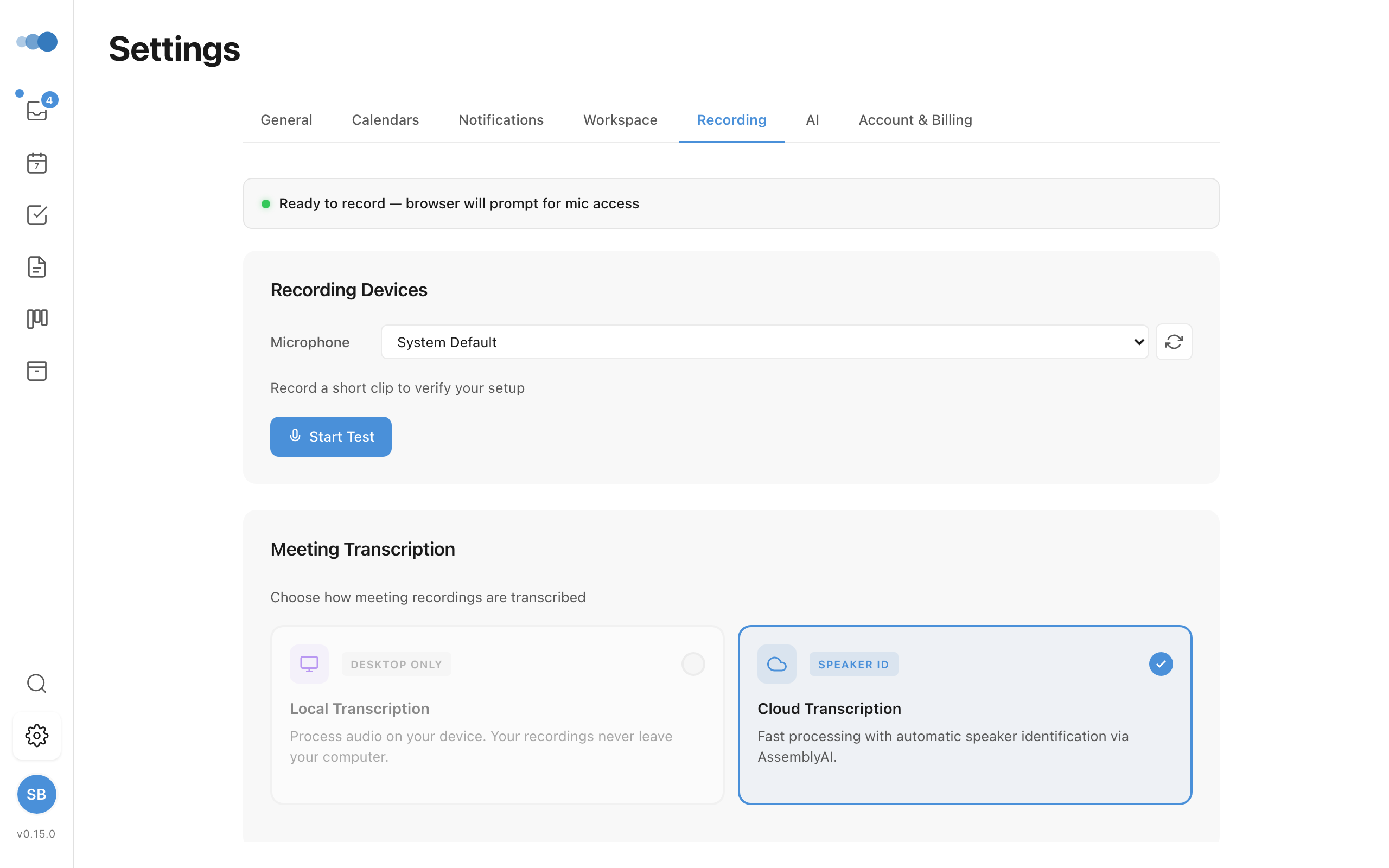
Readiness Status
A status indicator at the top shows whether your setup is ready to record, including microphone and screen permission status.
Microphone
- Select microphone — choose which microphone to record from
- Refresh Devices — detect newly plugged-in microphones
- Test recording — record a 5-second clip and play it back to verify your setup
Speaker Selection (Desktop Only)
Choose which audio output device to use for playback.
Transcription
- Local or Cloud — choose where transcription happens
- Model selector — pick a Whisper model (Tiny, Base, Small, Medium) with file size and speed info
- Desktop models — shows download status (Downloaded / Not Downloaded) with download buttons
- Speaker identification model — separate toggle and download on desktop
Storage (Desktop Only)
- Save recordings locally only — when enabled, recordings stay on your machine and don't sync to the cloud
- Storage folder — displays the current save location with a Change button to pick a different folder (e.g.
~/Documents/Cadeo Recordings) and a Reset to default option. Changing the folder only affects new recordings — existing recordings stay where they are. If the chosen folder ever becomes unavailable (for example an unplugged drive), recording safely falls back to the default location so it never fails.
Echo Cancellation (Desktop Only)
- Echo cancellation — reduces the echo/reverb your microphone picks up from your speakers when you record a Meeting with audio playing out loud. On by default.
- Turn it off if you're wearing headphones (or otherwise have no speaker audio for your mic to pick up), since there's no echo to cancel.
Permissions (Desktop Only)
Cards showing microphone and screen recording permission status with:
- Grant Access — request OS permissions
- Open System Settings — navigate to macOS/Windows permission settings