Understanding the Planner
The Planner (Today view) is your daily command center, showing tasks and calendar events on a visual timeline.
The Timeline
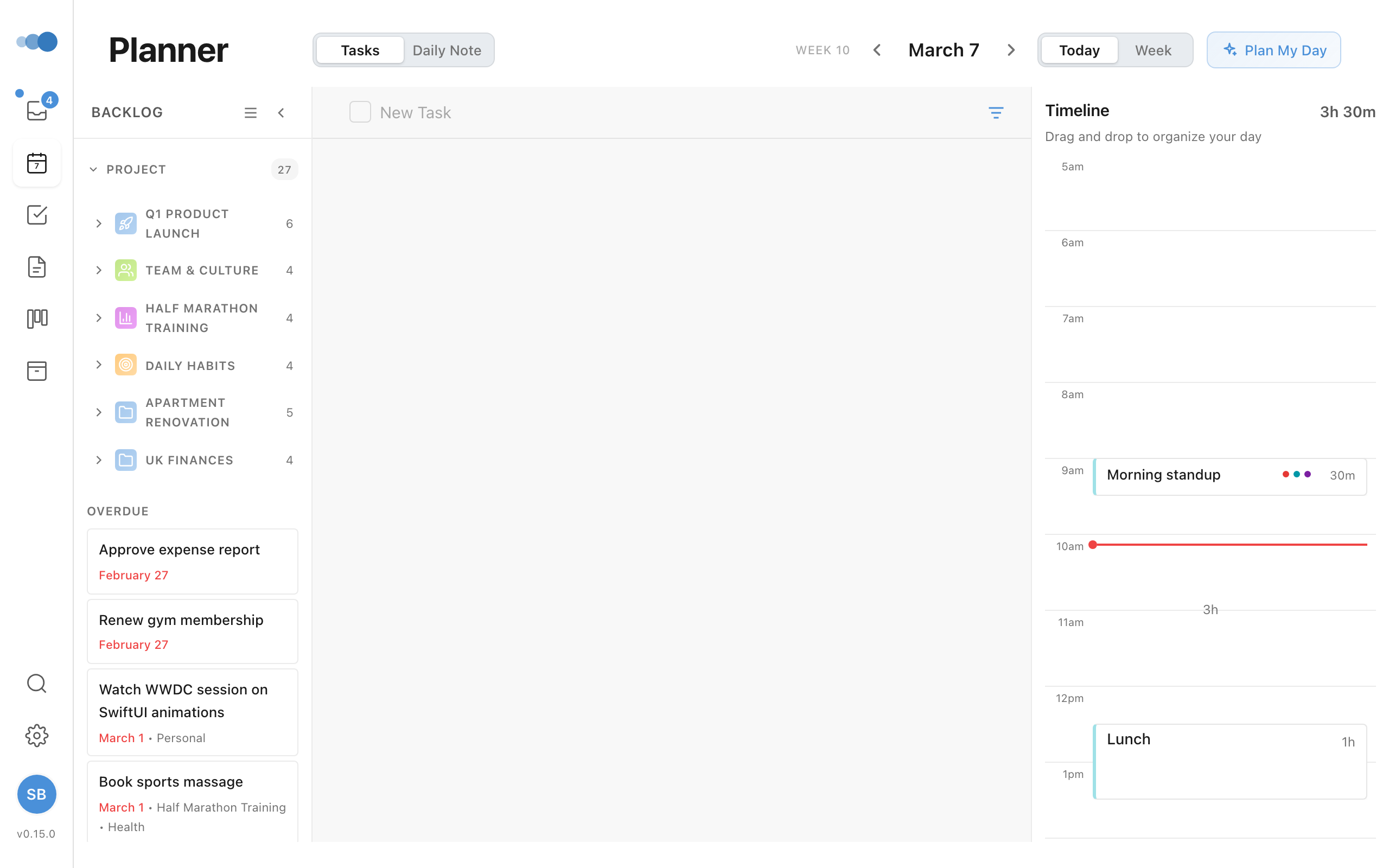
The timeline shows a 24-hour view of your day:
- Calendar events appear as colored blocks from Google Calendar
- Scheduled tasks appear as blue cards on the timeline
- Free time gaps are visible between events
Scheduling Tasks
To schedule a task on the timeline:
- Find a task in your Inbox or backlog
- Drag it to the timeline
- Drop it at your desired time
The task snaps to 15-minute increments for clean scheduling.
Adjusting Task Duration
Hover over the bottom edge of a scheduled task to see the resize handle. Drag to adjust how long the task will take.
- Duration snaps to 15-minute increments
- A preview shows the new duration as you drag
- If the task would run into a meeting or another task, the preview turns amber and names it — the task keeps its length and gets an Overlaps … tag
Daily Note Toggle
Switch between Tasks view and Daily Note view using the toggle at the top:
- Tasks: See your scheduled tasks and timeline
- Daily Note: Open your journal/scratch pad for today
Navigating Days
- Choose Day, 3 Days or Week to set how much you see; 3 Days shows the day you're on and the next two
- Click the arrows (or press
←/→) to move back or forward a day, 3 days or a week - Click Today (or press
T) to jump back to today - Click the filter at the start of the header (or press
F) to see only one area, such as Work or Personal, or one project. See Filtering the Planner - The timeline shows your working hours from Settings; click Before 9am or After 5pm to see the rest, and use − / + to zoom